See PrivSense in Action
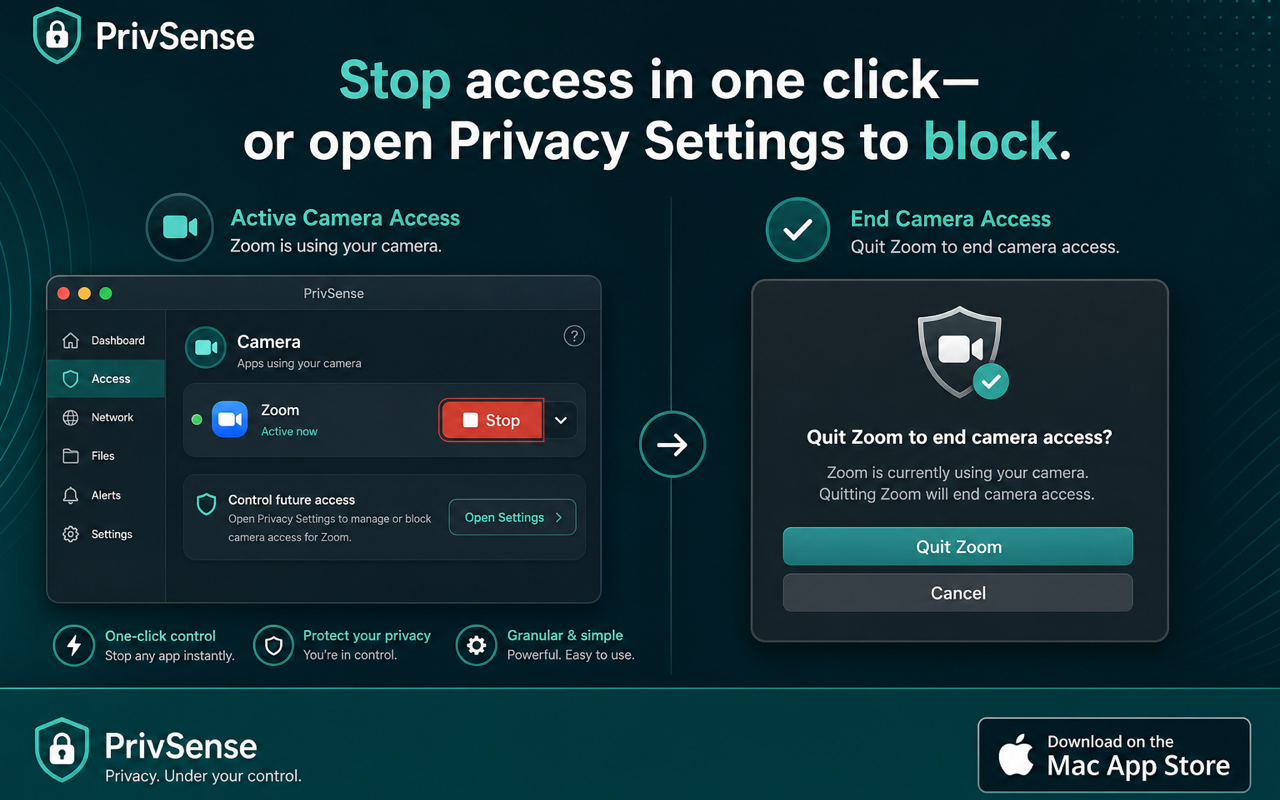
PrivSense shows you when apps use your Mac’s camera or microphone—right from the menu bar. No digging through System Settings. No guessing why the green light is on. Just clear, real-time visibility and a usable history of what happened.
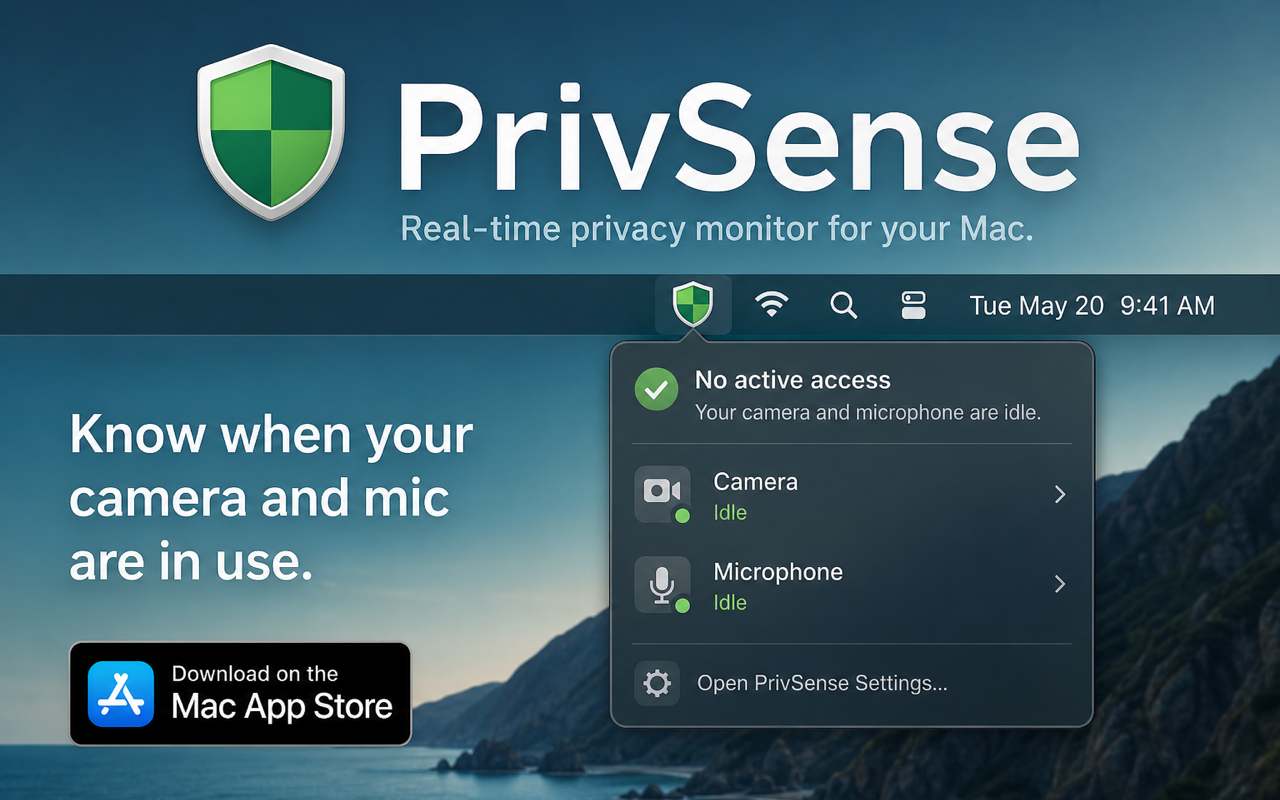
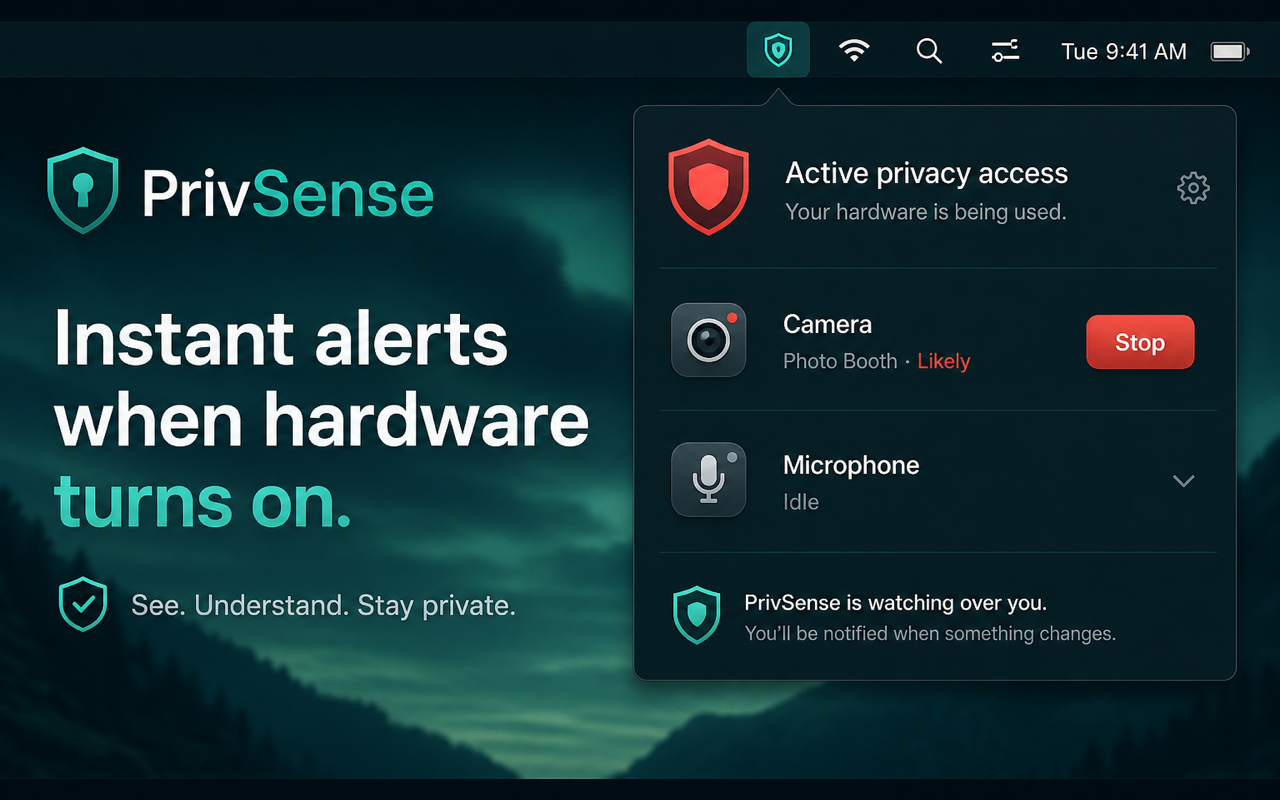
A simple shield in the menu bar turns red when the camera and/or microphone is in use, and green when you’re clear.
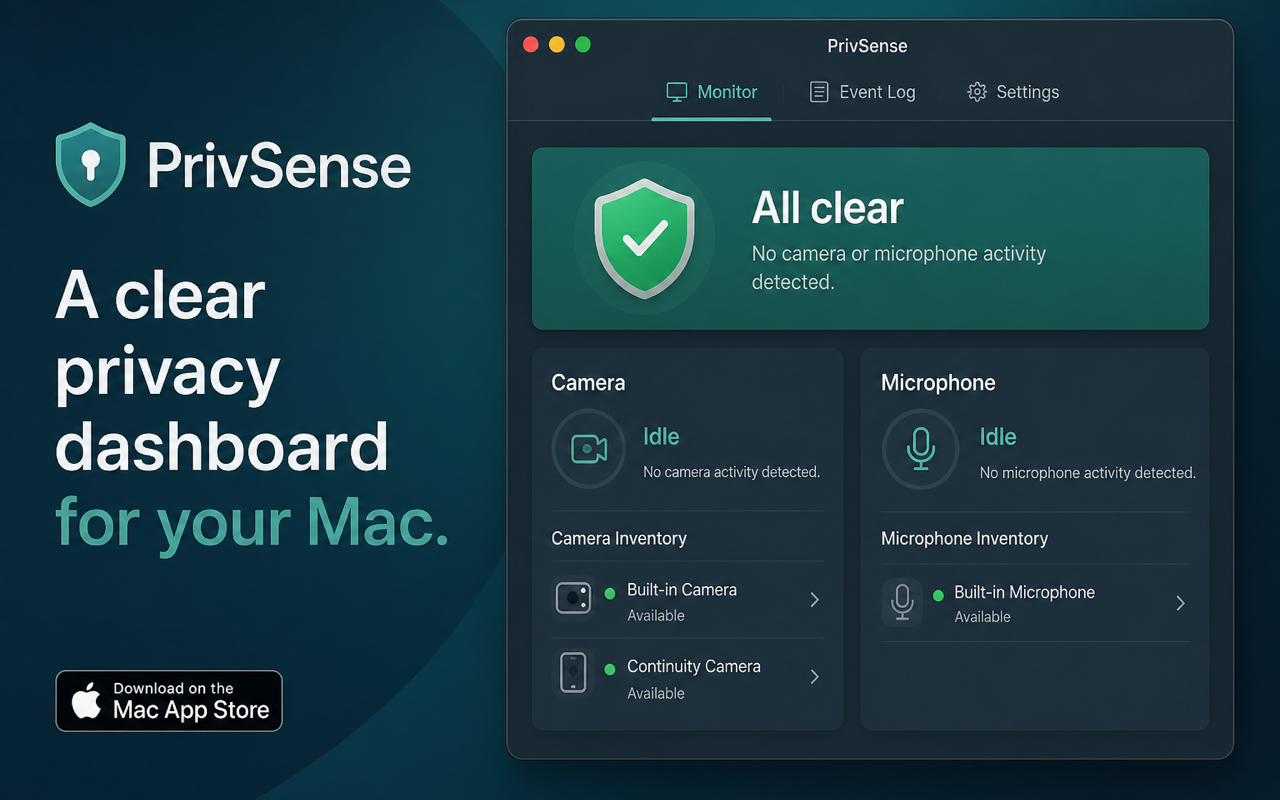
Open the menu for Camera and Microphone status, or the full dashboard for a live monitor and discovered cameras—including built-in, Continuity, external, and virtual devices.
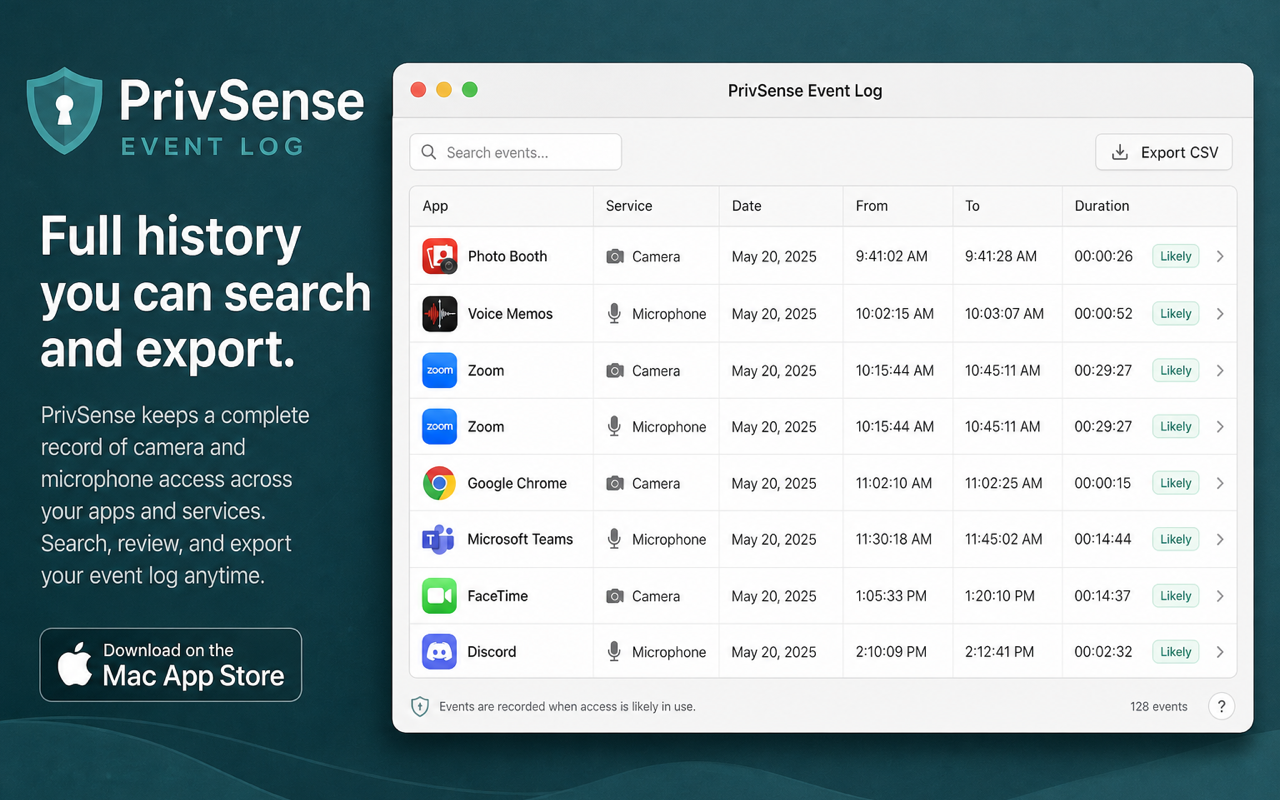
Every detected access is logged with time, service, and best-effort app attribution. Search, filter, and export to CSV when you need a record.
Quit an app to end a session, or jump to Privacy Settings to manage permissions. PrivSense is honest about what third-party Mac apps can and can’t do—it doesn’t silently revoke TCC permissions.
Get notified when a new app first uses the camera or mic, so surprises don’t slip by unnoticed.
Launch at login and a lightweight menu bar design that stays quiet until you need it. Sensing first. Visibility you can use.
PrivSense sits in your menu bar and monitors camera and microphone activity in real time.
The shield turns red when hardware is live. Open the menu or dashboard for details and device lists.
Browse the event log with time, service, and app attribution—then search or export to CSV.
Quit the app using your camera or mic, or open Privacy Settings to manage permissions.
Download PrivSense and know what’s using your Mac’s camera and microphone.
Download on Mac App Store